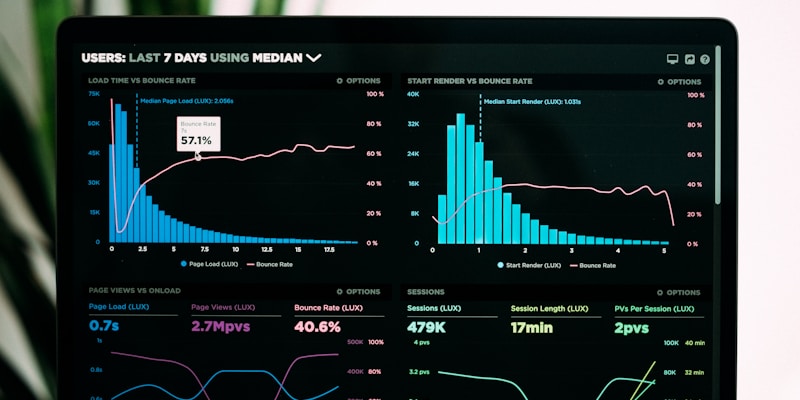
A slow WordPress site doesn't just frustrate visitors — it directly hurts your Google rankings, since Core Web Vitals are now a confirmed ranking factor. Studies consistently show that even a 1-second delay in load time can cut conversions by 7% or more.
I've optimized speed on 100+ WordPress and WooCommerce sites over the past 14 years. Below are the 15 techniques that actually move the needle — in the order I'd tackle them on a real project.
1. Choose Quality Hosting Over the Cheapest Plan
This is the foundation everything else sits on. A $2/month shared hosting plan puts your site on a server with hundreds of other sites competing for the same CPU and memory. No amount of caching or plugin tweaking fixes a slow server response time (TTFB) caused by overcrowded hosting.
For WooCommerce stores especially, invest in managed WordPress hosting or a properly configured VPS/dedicated server rather than bargain shared hosting.
2. Enable Server-Level or Plugin Caching
Caching stores a pre-built version of your pages so WordPress doesn't have to rebuild them from the database on every single visit.
- Use a caching plugin like WP Rocket, W3 Total Cache, or LiteSpeed Cache (if your host runs LiteSpeed)
- Enable page caching, browser caching, and object caching where supported
- If you're on a managed host, check if server-level caching is already included before adding a plugin on top
3. Compress and Properly Size Images
Images are usually the single biggest contributor to page weight. Before uploading:
- Convert to WebP format where possible — significantly smaller than JPEG/PNG at similar quality
- Resize images to the actual display dimensions — don't upload a 4000px photo to display at 800px
- Use a compression tool or plugin (ShortPixel, Imagify, or built-in WordPress image editor) before publishing
4. Implement Lazy Loading
Lazy loading delays image and video loading until they're about to enter the visible viewport, so the browser isn't downloading images the visitor hasn't scrolled to yet. WordPress core has had native lazy loading built in since version 5.5 — verify it's active and working correctly with your theme.
5. Use a Content Delivery Network (CDN)
A CDN serves your static assets (images, CSS, JS) from servers geographically closer to each visitor, cutting load time significantly for international audiences. Cloudflare's free tier is a solid starting point for most small business sites.
6. Minify and Combine CSS/JavaScript
Minification strips unnecessary whitespace and comments from your code files, and combining files reduces the number of separate server requests a browser has to make. Most caching plugins (WP Rocket, LiteSpeed Cache) include this as a built-in option — enable it and test your site afterward, since aggressive combining can occasionally break theme scripts.
7. Clean Up Your Database Regularly
WordPress accumulates database bloat over time — post revisions, spam comments, expired transients, orphaned metadata. A bloated database means slower queries on every page load.
- Limit post revisions with
define('WP_POST_REVISIONS', 5);in wp-config.php - Use a plugin like WP-Optimize or Advanced Database Cleaner periodically
- Always back up before running database cleanup
8. Reduce Plugin Bloat
Every active plugin adds its own database queries, scripts, and stylesheets. Audit your plugin list regularly:
- Remove plugins you're not actively using — deactivating isn't enough, delete them
- Look for overlapping plugins doing the same job (two SEO plugins, two caching plugins)
- Check each plugin's individual performance impact using Query Monitor
9. Optimize Web Fonts
Loading multiple font weights and families from external sources (like Google Fonts) adds render-blocking requests. Self-host your fonts where possible, limit yourself to 2-3 font weights, and use font-display: swap so text renders immediately with a fallback font while the custom font loads.
10. Defer or Async Non-Critical JavaScript
Scripts that aren't needed immediately (chat widgets, analytics, non-critical plugins) should load with defer or async attributes so they don't block the page from rendering. Most caching plugins offer a setting to delay JavaScript execution until user interaction, which can significantly improve perceived load speed.
11. Optimize for Core Web Vitals Specifically
Google measures three specific metrics:
- Largest Contentful Paint (LCP): how fast your main content renders — improved by image optimization and server response time
- Interaction to Next Paint (INP): how quickly the page responds to clicks/taps — improved by reducing JavaScript execution time
- Cumulative Layout Shift (CLS): how much the page visually jumps while loading — fixed by always specifying image/video dimensions and reserving space for ads or embeds
Test your actual scores in Google's PageSpeed Insights or Search Console's Core Web Vitals report rather than guessing.
12. Choose a Lightweight Theme
Heavy page builders and bloated themes with dozens of unused features slow down every single page. If you're on Elementor or a similarly heavy builder, be selective about which widgets and add-ons you actually activate — unused builder features still load code in the background on many setups.
13. Enable GZIP or Brotli Compression
Server-side compression shrinks the size of files sent to the browser. Most modern hosts and Cloudflare enable this by default — verify it's active using an online GZIP compression test tool.
14. Optimize WooCommerce-Specific Performance
If you're running a store, WooCommerce adds its own overhead:
- Limit the number of products displayed per category page
- Disable WooCommerce scripts/styles on non-shop pages where they're not needed
- Use fragment caching carefully — cart fragments can bypass full-page caching if misconfigured
15. Monitor Performance Continuously
Speed optimization isn't a one-time task — new plugins, theme updates, and content additions can quietly reintroduce slowness. Set up:
- Monthly PageSpeed Insights checks
- Google Search Console's Core Web Vitals report for real-world field data
- Uptime and performance monitoring (UptimeRobot or similar)
Quick Reference Checklist
- ☐ Hosting can handle your traffic without shared-resource bottlenecks
- ☐ Page caching active and tested
- ☐ Images compressed and served in WebP where possible
- ☐ Lazy loading working on images/videos
- ☐ CDN configured (Cloudflare or similar)
- ☐ CSS/JS minified and combined where safe
- ☐ Database cleaned of revisions, spam, expired transients
- ☐ Unused plugins removed, not just deactivated
- ☐ Fonts limited and using font-display: swap
- ☐ Non-critical JS deferred/async
- ☐ Core Web Vitals passing in Search Console
- ☐ GZIP/Brotli compression confirmed active
Frequently Asked Questions
What's the single biggest speed win for most WordPress sites?
Image optimization, in almost every case. It's the most common cause of slow load times and usually the easiest to fix immediately.
Do I need a developer to speed up my WordPress site?
Basic steps (caching plugin, image compression) are doable yourself. Database cleanup, JavaScript deferral, and Core Web Vitals-specific fixes often need a developer to avoid breaking site functionality.
How does site speed affect SEO specifically?
Core Web Vitals are a confirmed direct ranking factor, and slow sites also see higher bounce rates, which is itself a negative signal. For the full on-page SEO picture, see my WordPress SEO on-page checklist.
Need Professional Speed Optimization?
If you've tried the basics and your site is still slow — or you're not comfortable touching database queries and JavaScript loading order yourself — I handle full WordPress and WooCommerce performance audits. See how to hire an expert WordPress and WooCommerce developer, or get in touch directly for a free site speed review.


