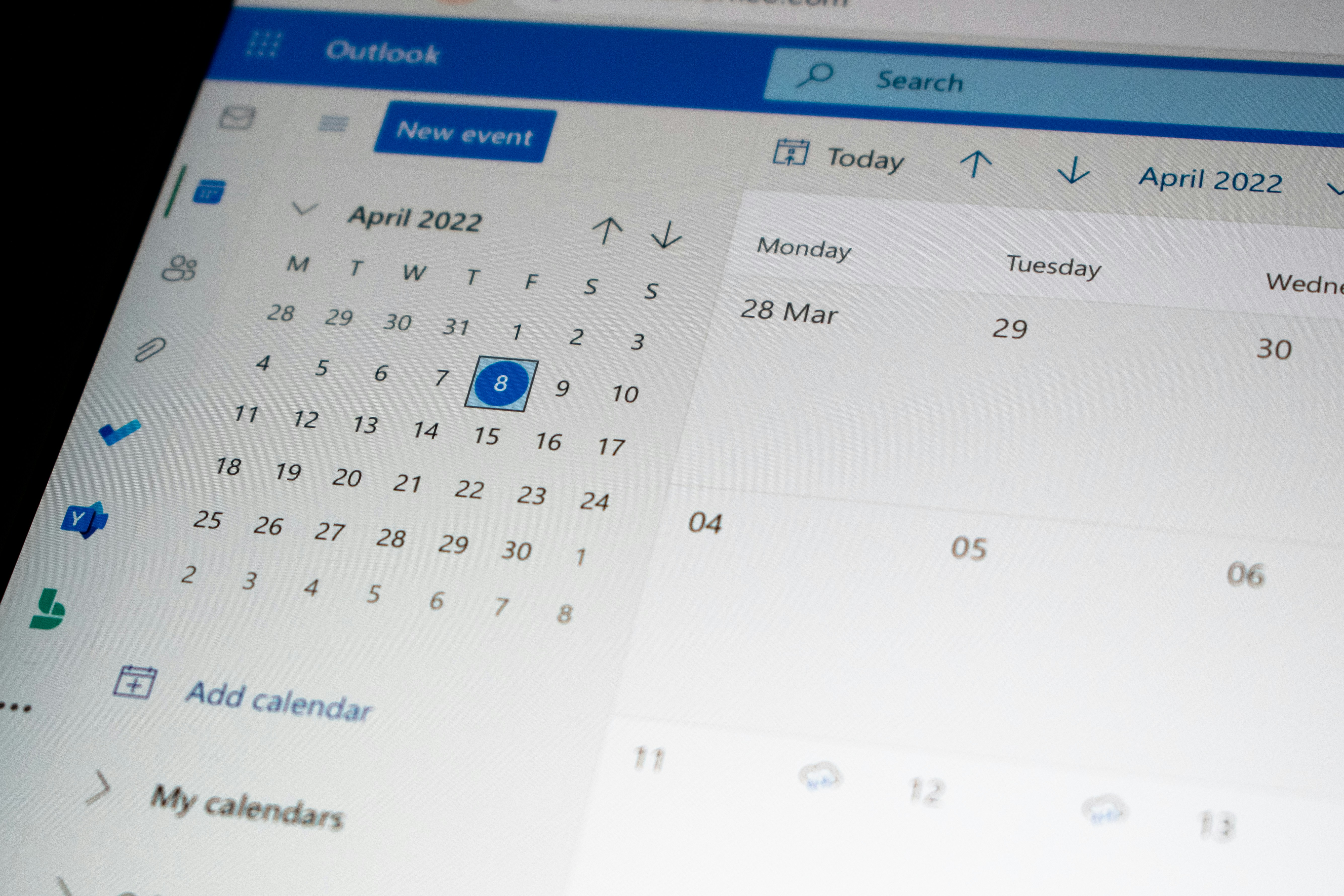
Not every WooCommerce store sells physical products. If you run a salon, rent out equipment, teach classes, or offer consultations, what you're really selling is time slots — and that needs a different setup than a normal product catalog. Here's how WooCommerce Bookings works, what it costs, and how to set it up step by step.
Table of Contents
What WooCommerce Bookings actually does
WooCommerce Bookings turns a regular product into a schedulable resource. Instead of a buyer adding a fixed item to their cart, they pick a date, a time slot, or a duration — and the system checks availability before allowing the booking to go through. Under the hood, it handles a few distinct concepts:
- Bookable products — a product type just for appointments, rentals, or reservations, instead of physical inventory
- Availability rules — business hours, blocked-out dates, buffer time between bookings, and how far in advance someone can book
- Resources — if you have multiple staff, rooms, or pieces of equipment, each can be tracked separately so two people can't double-book the same slot
- Duration-based or fixed-block pricing — charge per hour, per day, or as a flat rate regardless of length
- Optional add-ons — extras a customer can attach to a booking (e.g. a hot towel add-on for a haircut, or extra insurance for an equipment rental)
This is different from a subscription setup, where the same product renews on a schedule — WooCommerce Subscriptions handles recurring billing, while Bookings handles time-slot availability. Some stores end up needing both — for example, a monthly class pass that also needs to reserve a specific seat each session.
What it costs to set up
| Component | Typical cost | Notes |
|---|---|---|
| WooCommerce Bookings plugin (official) | $249/year | Sold directly by Woo.com, single-site license |
| Alternative booking plugins | $0–$150/year | Lighter feature sets, fewer resource/staff options |
| Setup and configuration | $300–$900 | Availability rules, resources, pricing logic, testing |
| Custom booking rules or calendar sync | $500–$2,000+ | Google Calendar sync, staff-specific booking pages, complex pricing |
| Full booking-based store build | $1,200–$4,000+ | Theme, booking setup, payments, notifications, launch |
The official plugin's $249/year license is the most predictable cost. The variable part is configuration — a single-resource setup (one calendar, one set of hours) is quick to configure, while a multi-staff, multi-location setup with individual calendars takes considerably longer to get right. If budget is the main constraint, it's worth reading our guide on how to hire a WooCommerce developer on a budget before committing to a full custom build.
How to set up a booking product: step by step
Install and activate the Bookings plugin
Once activated, WooCommerce gains a new "Bookable Product" type alongside simple and variable products.
Define your resources
If multiple staff, rooms, or equipment items can fulfill a booking, set each up as a separate resource so the system tracks their availability independently.
Set your availability rules
Configure business hours, days off, holiday blackout dates, and how far in advance (minimum and maximum) a customer can book.
Choose your booking duration type
Decide between fixed blocks (e.g. 30-minute slots), a customer-chosen duration (e.g. rent for 1-5 days), or a fixed date range (e.g. a weekend workshop).
Add buffer time and cancellation rules
Buffer time prevents back-to-back bookings from overlapping (important for services needing cleanup or prep time). Set a cancellation window so customers can't cancel minutes before their slot.
Connect notifications and payment
Confirm booking confirmation emails are firing correctly, and that your checkout flow matches your business — deposit-only, full payment upfront, or pay-on-arrival. This often overlaps with your existing payment gateway configuration.
Test as a customer across devices
Book a test slot on both desktop and mobile, confirm the calendar reflects the change immediately, and confirm confirmation emails/notifications trigger correctly before going live.
Official plugin vs alternatives: pros and cons
Official WooCommerce Bookings plugin
- Deepest integration with WooCommerce core (cart, checkout, orders)
- Handles multi-resource, multi-staff calendars natively
- Regular updates directly from WooCommerce/Automattic
- Best fit for complex availability rules
Lighter alternative plugins
- Lower or no licensing cost
- Simpler to configure for single-resource setups
- Can lack multi-staff/resource tracking
- Less consistent long-term support and updates
For a single-person service business (one calendar, no staff to manage), a lighter free or low-cost plugin is often enough. Once you're managing multiple staff, rooms, or equipment with independent schedules, the official plugin's resource system pays for itself in avoided double-bookings and support headaches.
Common use cases
Salons & barbershops
Per-stylist calendars, service-based durations, buffer time between appointments.
Equipment & venue rentals
Day or hourly rentals with availability blocked once an item is booked out.
Consultants & coaches
Fixed-length sessions with a booking window and automatic buffer between calls.
Classes & workshops
Fixed-date sessions with capacity limits per date, often paired with a membership or subscription for repeat attendees.
Common mistakes to avoid
Skipping buffer time. Without it, back-to-back bookings can leave no time for cleanup, prep, or travel between appointments — leading to real-world scheduling conflicts the system won't catch on its own.
Other frequent mistakes: not testing the booking flow on mobile before launch (most service bookings happen from a phone), forgetting to set a maximum advance-booking window (leading to bookings years out), and not clearly setting cancellation/rescheduling rules up front — which causes support headaches later. If your store also needs custom pricing logic beyond what any plugin offers out of the box, that's usually a sign to look at custom WooCommerce plugin development rather than stacking multiple booking add-ons.
A practical starting point
If you're setting up bookings for the first time, start with one resource and simple fixed-duration slots — get that working end to end (booking, payment, confirmation email) before adding multiple staff calendars or custom add-ons. This keeps your initial cost closer to the $550–$1,150 range (plugin + basic setup) rather than jumping straight into a complex multi-resource build. If you're building the entire store from scratch rather than adding bookings to an existing one, our guide on what it costs to build a simple WooCommerce store is a good starting reference for the rest of the build.
Setting up appointment or rental bookings on your WooCommerce store?
I build and configure WooCommerce booking systems for salons, rentals, consultants, and class-based businesses.
WhatsApp: +880 1761-679353FAQ
How much does WooCommerce Bookings cost per year?
The official WooCommerce Bookings plugin costs $249/year for a single site. Lighter alternative plugins range from free to around $150/year but offer fewer multi-resource features.
Can I manage multiple staff calendars in one store?
Yes. The official plugin's "resources" feature lets you assign each staff member or room its own calendar, so bookings for one resource don't block availability for another.
Does WooCommerce Bookings work for rentals, not just appointments?
Yes. You can set bookable products as customer-chosen duration (e.g. rent for 1-5 days) rather than fixed time slots, which works well for equipment or venue rentals.
Can customers pay a deposit instead of the full amount?
Yes, WooCommerce Bookings supports deposit-based payments, with the remaining balance collected later or on arrival, depending on how your checkout is configured.
How long does a basic booking setup take?
A single-resource setup with simple fixed-duration slots usually takes 3-5 days including testing. Multi-staff or multi-location setups can take 2-3 weeks depending on complexity.
Do I need coding knowledge to set up WooCommerce Bookings?
No — the plugin is configured through the WordPress admin. Custom pricing logic or calendar syncing beyond the plugin's built-in options is where development work becomes necessary.
Can WooCommerce Bookings sync with Google Calendar?
Not natively out of the box for two-way sync — this typically requires a calendar-sync add-on or custom integration, which adds to setup cost.
What's the difference between WooCommerce Bookings and WooCommerce Subscriptions?
Bookings manages time-slot availability (a specific appointment or rental period). Subscriptions manages recurring billing (a product that renews on a schedule). Some businesses, like class memberships, use both together.