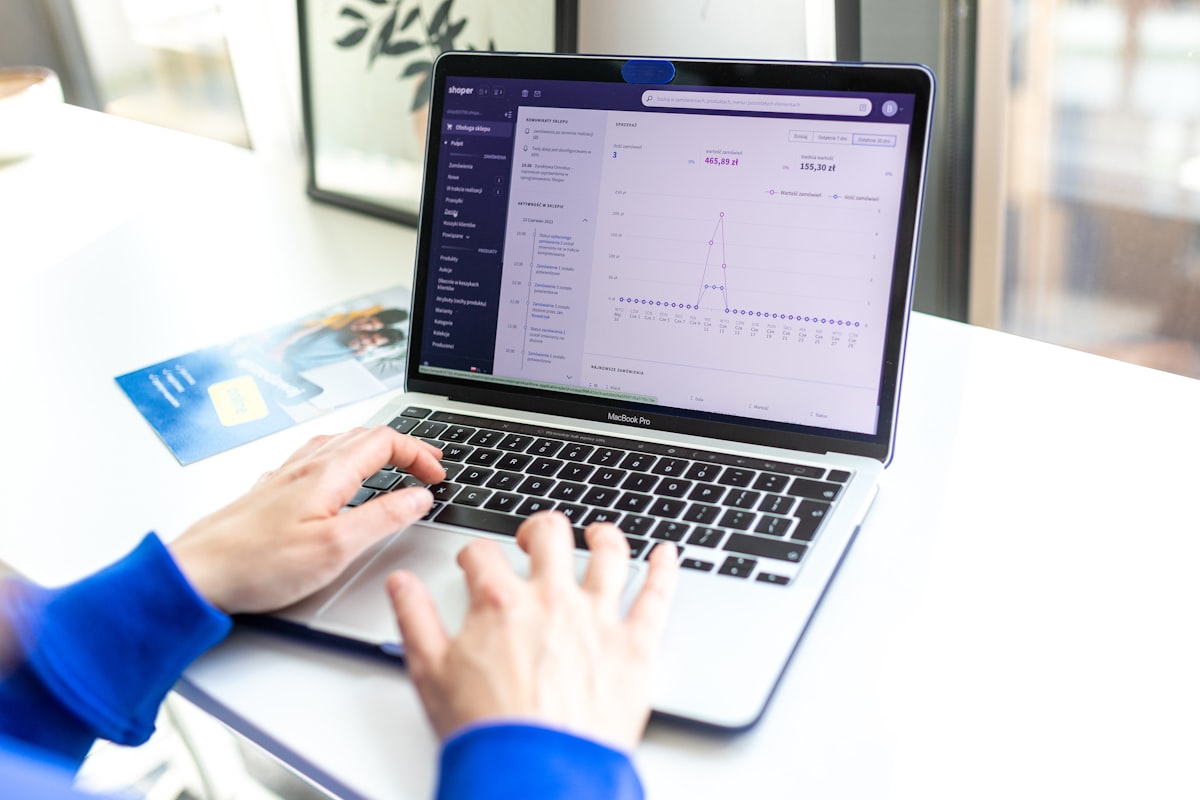
Thinking about migrating from Shopify to WooCommerce? You're not alone. Thousands of store owners in the US, UK, and Australia make this switch every year — and for good reason. WooCommerce gives you full ownership of your store, zero transaction fees, and unlimited customization freedom that Shopify simply can't match.
This step-by-step guide walks you through the entire Shopify to WooCommerce migration process in 2026 — from backing up your data to launching your new store — without losing your SEO rankings or customer data.
Why Store Owners Are Leaving Shopify for WooCommerce
Before diving into the migration steps, it's worth understanding what's driving so many business owners to make the switch.
- Monthly fees add up fast. Shopify plans range from $39 to $399/month, plus 0.5%–2% transaction fees if you don't use Shopify Payments. On WooCommerce, you pay only for hosting — typically $10–$30/month.
- You don't own your store on Shopify. Shopify can suspend your account at any time. With WooCommerce on your own hosting, you have 100% control.
- Limited customization. Shopify restricts what you can change without expensive apps. WooCommerce is open source — you can customize anything.
- Better SEO control. WooCommerce on WordPress gives you full access to URLs, meta data, schema, and technical SEO in ways Shopify doesn't allow.
If any of these reasons resonate with you, migration is a smart long-term move. Let's get into how to do it properly.
Step 1: Back Up Your Shopify Store
Before touching anything, export all your Shopify data. Go to your Shopify Admin → Products → Export and repeat the same for Customers, Orders, and Blog Posts. Save every CSV file — you'll need them.
Also note down your current Shopify URL structure. This is critical for setting up 301 redirects later and preserving your SEO rankings.
Step 2: Set Up WordPress and WooCommerce
You need a hosting account with WordPress installed. For a store migrating from Shopify, I recommend a managed WordPress host like Cloudways, Kinsta, or WP Engine — they offer better performance and security than shared hosts.
Once WordPress is installed:
- Install the WooCommerce plugin from the WordPress plugin directory
- Run through the WooCommerce setup wizard — configure your currency, payment methods (Stripe, PayPal), and shipping zones
- Install an SSL certificate (most hosts provide this free via Let's Encrypt)
- Choose a WooCommerce-compatible theme — Storefront, Astra, or Flatsome are popular options
Step 3: Migrate Your Products
This is the most time-consuming part of the migration. You have two options:
Option A: Manual CSV Import
WooCommerce has a built-in product importer. Go to WooCommerce → Products → Import and upload your Shopify product CSV. You'll need to map Shopify's column names to WooCommerce fields. This works well for stores with under 500 products.
Option B: Use a Migration Plugin
For larger stores, tools like Cart2Cart or LitExtension automate the entire migration — products, customers, orders, reviews, and categories. These tools cost $50–$200 depending on store size but save dozens of hours of manual work.
Whichever method you choose, after import always verify:
- Product images are displaying correctly
- Variants (size, color) are mapped properly
- Stock quantities are accurate
- Product categories and tags are intact
Step 4: Migrate Customers and Orders
Customer and order history is important for business continuity. Using Cart2Cart or a similar tool, you can import your full order history into WooCommerce — including customer names, addresses, emails, and order statuses.
Note: Customer passwords cannot be migrated due to Shopify's encryption. You'll need to send a password reset email to all customers after migration. Most email marketing tools (Klaviyo, Mailchimp) can automate this.
Step 5: Recreate Your Pages and Blog Content
Your Shopify pages (About, Contact, FAQ, etc.) need to be recreated manually in WordPress. Export your Shopify blog posts as CSV and either import them via a plugin or paste them manually into WordPress.
Make sure every blog post URL is recreated exactly — or set up a redirect if the URL structure changes. Losing blog URLs means losing SEO value you've built over time.
Step 6: Set Up 301 Redirects
This step is non-negotiable if you care about SEO. Every URL that changes during migration needs a 301 redirect pointing from the old Shopify URL to the new WooCommerce URL.
Common URL changes during Shopify → WooCommerce migration:
/products/product-name→/shop/product-name//collections/category→/product-category/category//blogs/news/post-title→/blog/post-title/
Use the Redirection plugin in WordPress to manage these, or add them directly to your .htaccess file for better performance. Without proper redirects, you'll lose all the Google ranking authority your Shopify store has built.
Step 7: Configure SEO Settings
Install Rank Math or Yoast SEO and configure:
- Meta titles and descriptions for all products and pages
- XML sitemap — submit the new one to Google Search Console
- Schema markup for products (price, reviews, availability)
- Canonical URLs to avoid duplicate content
Also update your Google Search Console and Google Analytics to point to your new domain (if it changed) or verify the new sitemap if the domain stayed the same.
Step 8: Test Everything Before Going Live
Before switching your domain's DNS to the new WooCommerce store, test thoroughly on a staging environment:
- Place a test order end-to-end (add to cart → checkout → payment → confirmation email)
- Test on mobile — over 60% of ecommerce traffic is mobile
- Check page load speed with Google PageSpeed Insights (aim for 90+ on mobile)
- Verify all payment gateways are processing correctly
- Check that all images are loading and no broken links exist
Step 9: Go Live and Monitor
Once testing is complete, update your domain's DNS to point to your new hosting. DNS propagation takes 24–48 hours. During this window, keep your Shopify store live so no orders are lost.
After going live:
- Monitor Google Search Console daily for crawl errors or drops in indexed pages
- Watch Google Analytics for traffic changes — some temporary drop is normal
- Check that all 301 redirects are working using a redirect checker tool
- Run a full crawl with Screaming Frog to catch any broken links
How Long Does Shopify to WooCommerce Migration Take?
For a small store (under 100 products): 3–5 days if you're doing it yourself, or 1–2 days with a developer.
For a medium store (100–500 products): 1–2 weeks DIY, or 3–5 days with a developer.
For a large store (500+ products, complex configurations): 3–6 weeks — professional help is strongly recommended.
Should You Hire a Developer for the Migration?
If your store generates significant revenue, hiring a WooCommerce developer for the migration is worth every penny. A botched migration can mean days of downtime, lost orders, and SEO rankings that take months to recover.
A professional developer will handle the full migration, set up all redirects correctly, configure your payment gateways, and ensure your store performs faster than it did on Shopify. If you want to understand what this costs, read my detailed breakdown: How Much Does It Cost to Hire a WooCommerce Developer in 2026?
Curious about the actual migration cost itself, not just developer rates? I've broken down real Shopify-to-WordPress pricing — from DIY to full-service quotes — in How Much Does It Cost to Migrate from Shopify to WordPress? (Real Pricing Breakdown).
Alternatively, if you're evaluating whether WooCommerce is the right fit before committing to migration, my comparison article covers it in depth: WooCommerce vs Shopify: Which is Better for US Small Businesses in 2026?
Final Thoughts
Migrating from Shopify to WooCommerce is one of the best long-term decisions a growing ecommerce business can make. You gain full ownership, lower costs, and unlimited flexibility. The migration process has real complexity — but done correctly, it's a one-time investment that pays dividends for years.
If you'd rather have an expert handle it and ensure zero downtime, get in touch — I've helped US, UK, and Australian businesses make this switch smoothly and without losing a single day of sales.